Quick Start – Remote Desktop Control
Setup Your Profile
Define your public identity and claim chat room.
Configure your public profile and username parameter
- Click “Setup Profile” button above to join 2ConnectMe.
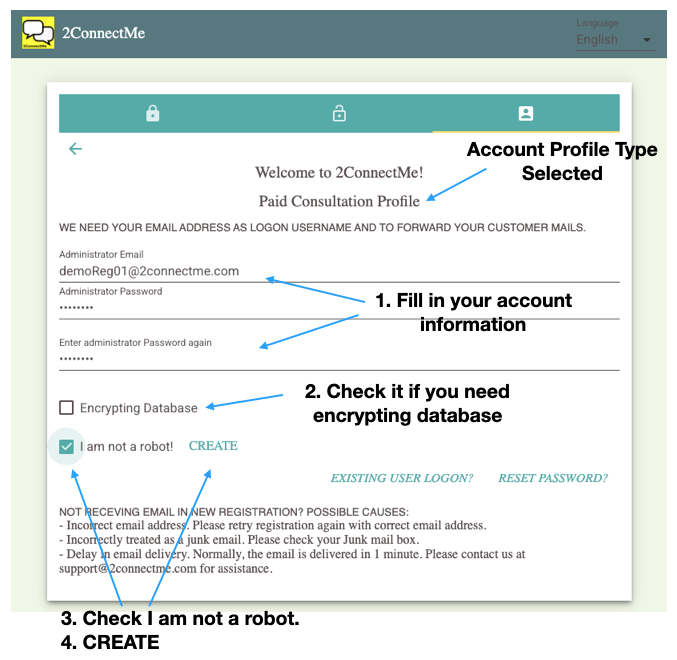
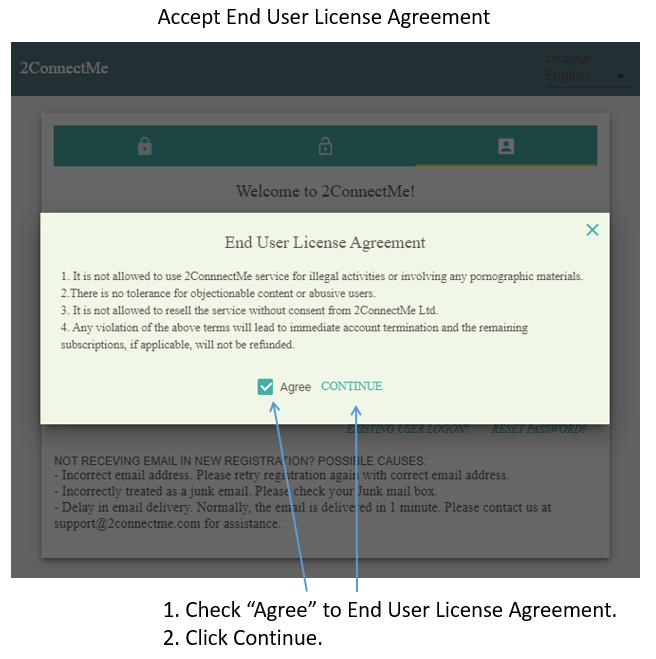
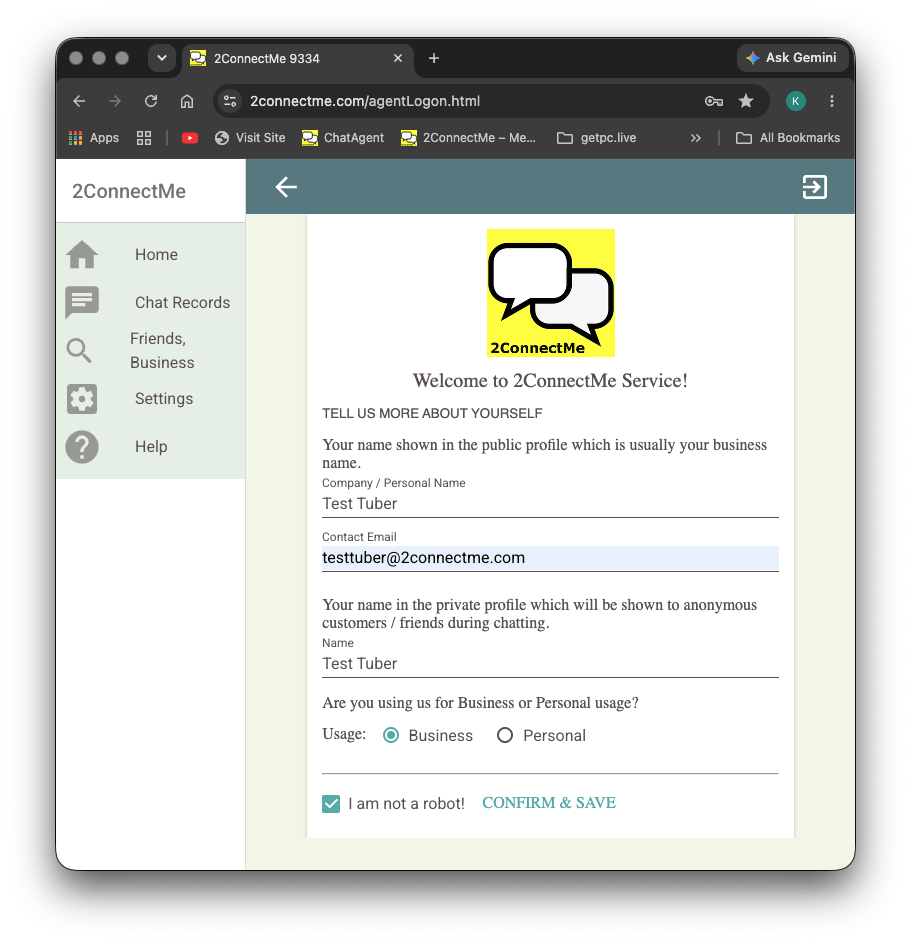
- You will go through the screens below resemble the visual layout previews below:

Select business profile
Three types of Forever Free Plan are avaialbe.
- Paid Consultation Profile: It is for business with a team of staff to provide online services. While it comes with the most flexibile settings and configurations to fit any business, the initial default settings are well setup for Solo business founder to start services in 15 minutes.
- Therapist US HIPAA: It transforms a therapist website into a clinic with paid video sessions in compliance with United States HIPAA
- Therapist – Hong Kong Personal Data Privacy Ordinace (PDPO): It transforms a therapist website into a clinic with paid video sessions in compliance with Hong Kong Personal Data Privacy Ordinance
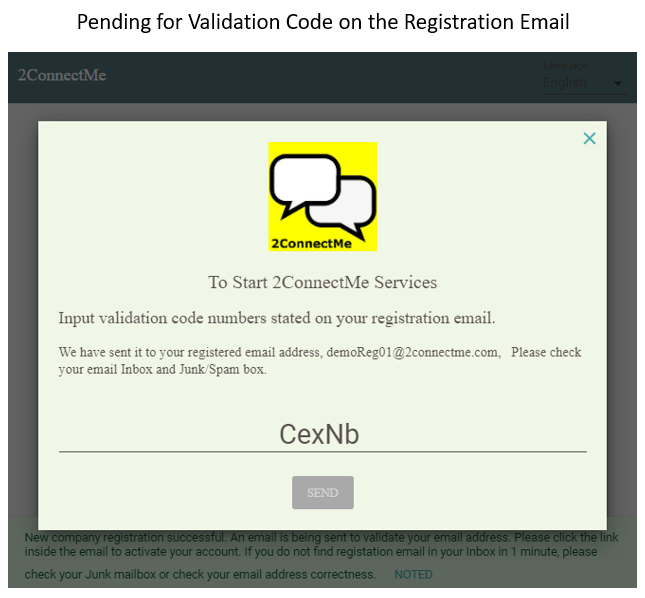
Registered email address verification
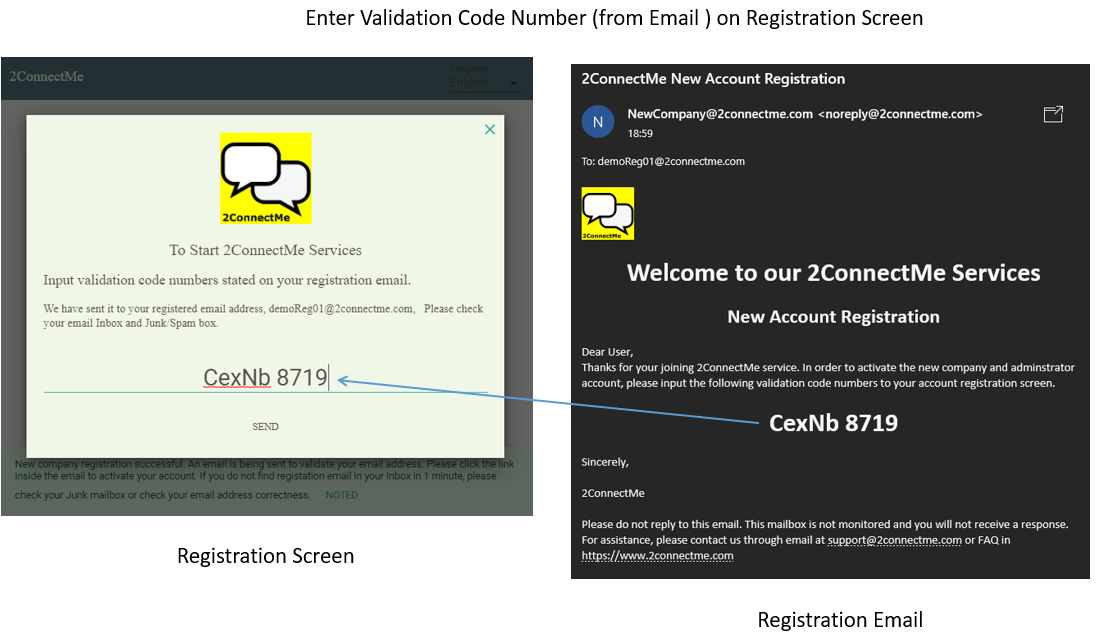
An validation code number is sent to your registered email address. Just enter those numbers on the registration screen and it will divert you to agent desktop screen. If you do not find the registration email in your Inbox in 1 minute, please check your Junk/Spam mailbox. Sometimes, email systems wrongly treat it as a Junk/Spam mail.
Setup Profile at First Logon
After entering the correct validation code numbers on the registration screen, you will then logon to 2ConnectMe Admin Console. For the first time logon, initial setting wizard helps you setup the service with minimal mandatory settings. The Initial settings can be changed at any time later.
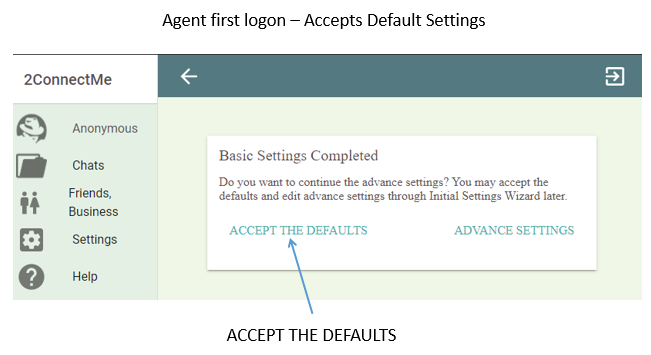
Accept Default Settings
Then you may either Accept default settings, which is recommended for new users, or continue the detail system settings as screen shown below. Please take note that the “WhatsApp” setting is NOT activated by default. In case you would like to have “WhatsApp” agent settings, please continue “ADVANED SETTINGS” or “INITIAL SETTINGS WIZARD” on the next section of this document.
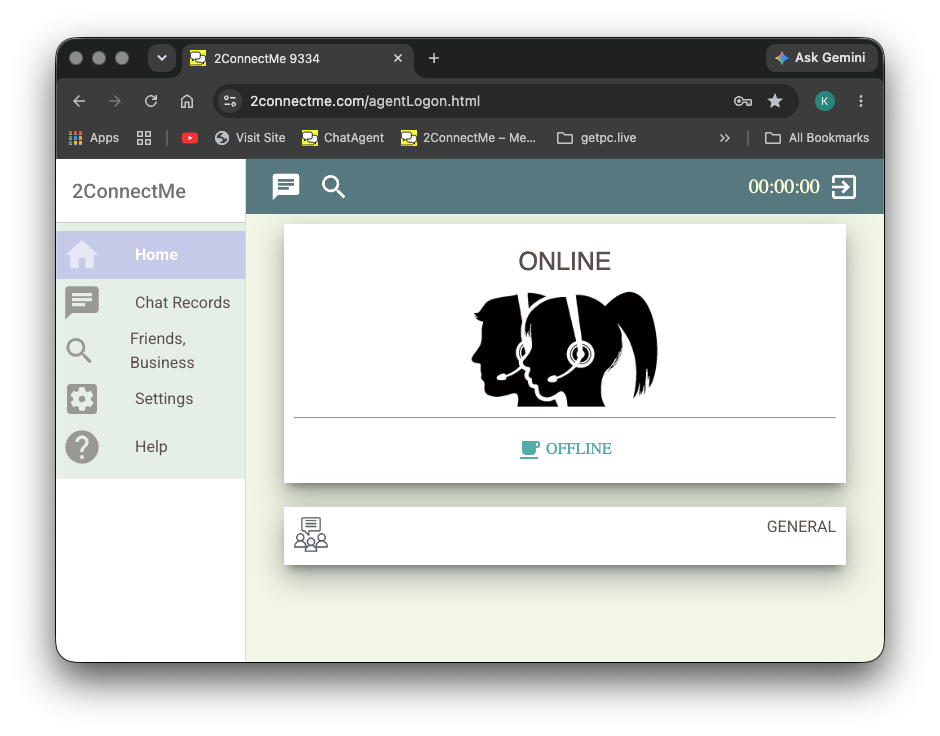
Test Your First Remote Desktop Control
Install Client Guest app
- Download client app “2ConnectMe Video Consult Guest” to be installed on the PC remotely controlled.
- Enter the service staff email address, i.e. your registered email address
- Check “Unattended Mode“.
Download client apps from app store


Service staff control remote desktop


FAQ
Keys typed are not matched with remote keyboard
Remote desktop keyboard and the local service staff keyboard must be with the same key layout in order to work seamlessly. Details here.
Energy Saving settings required in Power, Sleep & Lock Screen options
In “Unattended Mode” waiting for service staff connection, the client desktop may go to “Sleep” for energy saving which requires specific settings for remote wake up to work. The details of settings here.
Helpers
2ConnectMe Paid Video Consult App


Microsoft Store
The videos below illustrate how to get “ConnectMe Paid Video Consult” installed with joining the “Paid Consult Profile” – Forever Free plan.
Apple Mac App Store
Get “ConnectMe Paid Video Consult” app from Apple Mac App Store
Applie iOS App Store
Get “ConnectMe Paid Video Consult” app on iPad from Apple App Store
2ConnectMe Video Consult Guest App
For Microsoft Windows, there is an another download from our own 2connectme.com website in additional to the one from Microsoft store.
Due to secruity concerns, any app from Microsoft store comes with a lot of restrictions on remote controls, particularly, without the priviledge to perform admininstration tasks.
For those client desktops with critical tasks pending for service staff agent to perform, e.g. help install another app on client computer, just click the button below, with Full Admin Privileges below, to download the app from our 2connectme.com website directly.
Download “2ConnectMe Video Consult Guest” on client desktop

ConnectMe Customer on browsers (without Remote Control capabilities)
Video helper for installation from Microsoft Store
Get “ConnectMe Video Consult Guest” from Microsoft Store
Video helper for installation from Apple App Store (MacOS)
Get “ConnectMe Video Consult Guest” apps from Apple App Store (MacOS)
Usage Guides
Remote Control Client Desktop on Windows (Unattended Mode)
Remote Control Client Desktop on Windows (Unattended Mode)
Remote Control Client Desktop on Mac (Unattended Mode)
Remote Control Client Desktop on Mac (Unattended Mode)
Gestures on 2ConnectMe Paid Video Consult (iPad) & soft-keyboard usage (Unattended Mode)
ConnectMe Paid Video Consult (iPad) gestures and soft-keyboard usage usage (Unattended Mode)
Advance Functions

To start consultation, service staff could send email with URL link for client to join the chat while keeping anonymous identity.
“Unattended Mode” allows the local desktop to be controlled without client interaction.

Try to restore or wait for the online status before timeout, i.e. 90 seconds. The timer and charges will be automatically adjusted accordingly.

Video recording is allowed after obtaining consent from client during the chat or agreeing to video recording at unattended mode.