Security
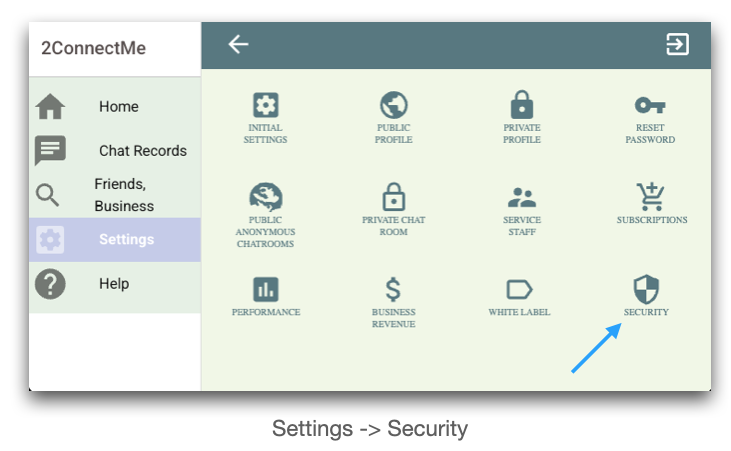
Where are security settings?
Settings -> Security.
What are the security settings for?
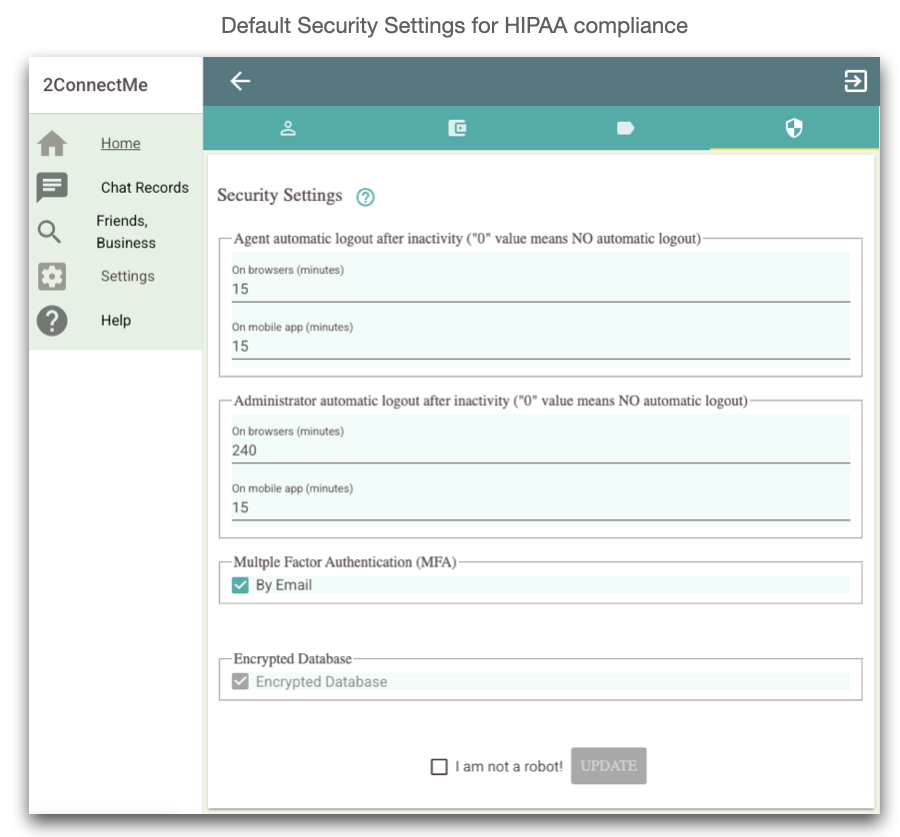
The Security settings are implemented to comply HIPAA – US requirements including
- Automatic logout service staff after inactivity
- Multi-factor authentication (MFA)
- Data Encryption
Even the account is not HIPAA type, it is still allowed to setup all these secruity settings to empower your account with high security measures.
Automatic logout service staff after inactivity for normal service staff
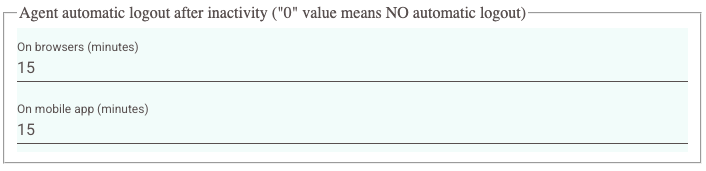
In order to protect from unauthorised access, the app will be automatically forced to logout after service staff does not operate the app for such timeout.
Such timeout could be setup respectively for mobile app and desktop (browser) app.
If the account is with HIPAA type, such timeouts is restricted to 15 (minutes) the longest.
Automatic logout service staff after inactivity for administrator
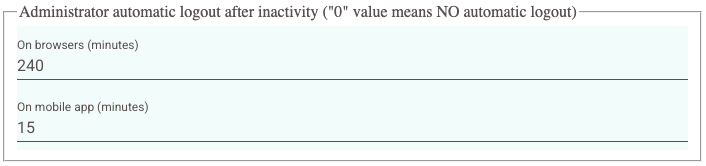
In order to protect from unauthorised access of administrator account, the app will be automatically forced to logout after administrator staff inactivity on the app for such timeout.
Such timeouts for administrator account could be setup respectively for mobile app and desktop (browser) app.
For the account with HIPAA type, such timeout for mobile app is restricted to 15 minutes, by default, the longest.
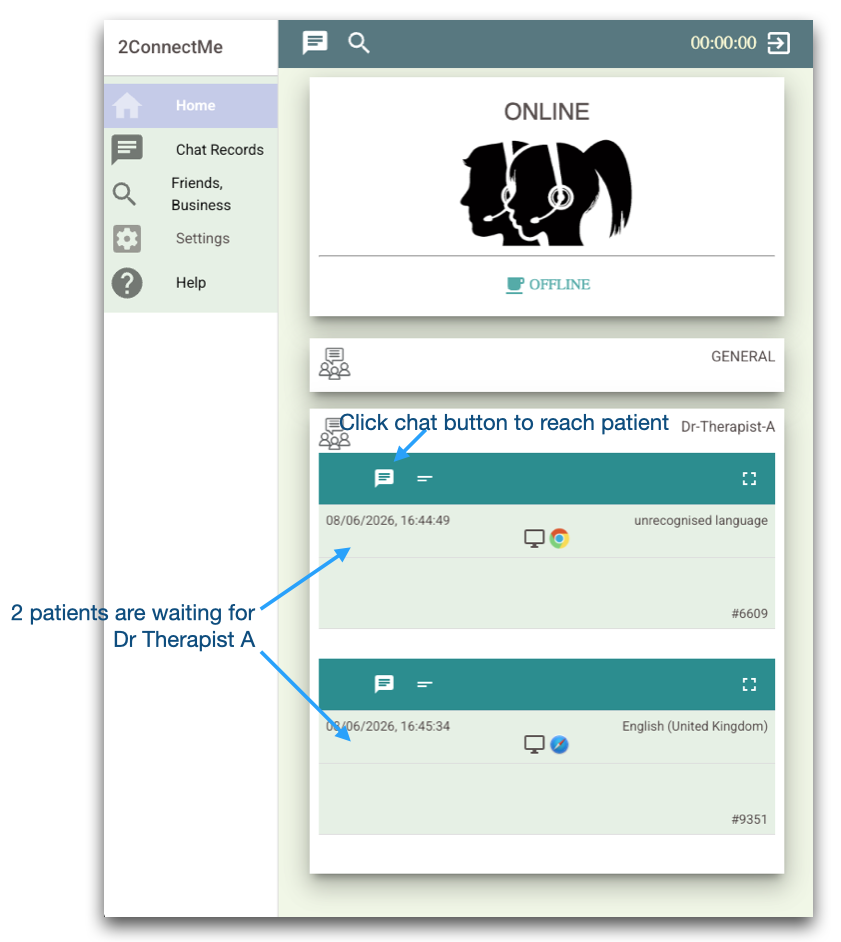
For the account with HIPAA type, such timeouts for the desktop (browser) app is restricted to 240 minutes, by default, the longest. Such long timeout period is mainly for illustrating clinic dashboard below with the patients waiting for the therapist.
Multi-Factor Authentication (MFA)

To comply HIPAA, additional authentcation is required through, e.g. email, after initial username and password authentication on logon screen for desktop (browsers) app.
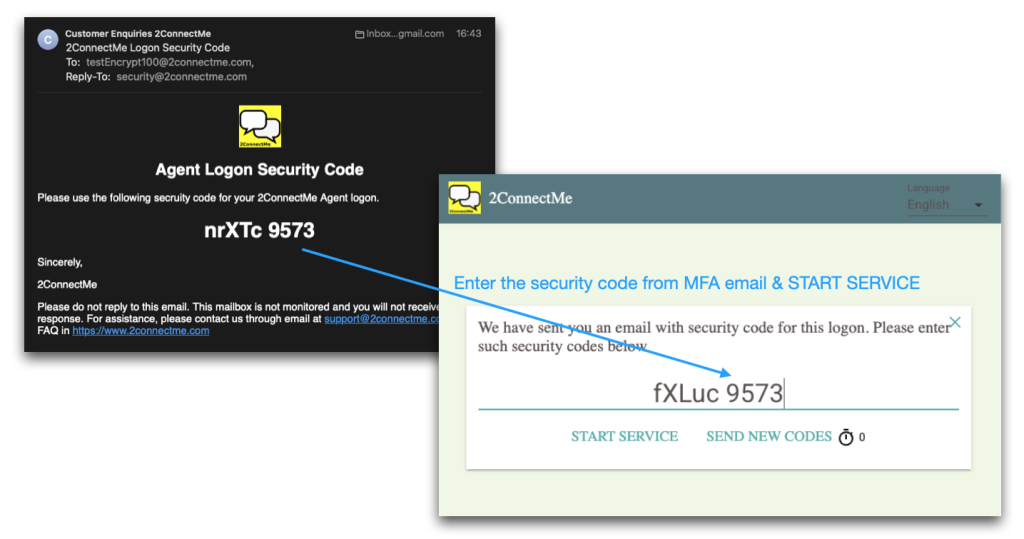
Multi-Factor Authentication (MFA) on mobile app
On Moible app, it require MFA only on initial logon. Once logon, the app may be pushed to background by Android or iOS. When the app is still at background and the inactivity period reaches timeout for automatic logout, only authentication at mobile operating system level, i.e. prmopt lock screen on iOS or Android, e.g. finger print or PIN, is required to re-enter the app without the need waiting for the MFA emai.
Encrypted Database
This is the status of data encryption. Scuh encryption status cannot be modified once initially decided in registering an account (administrator).

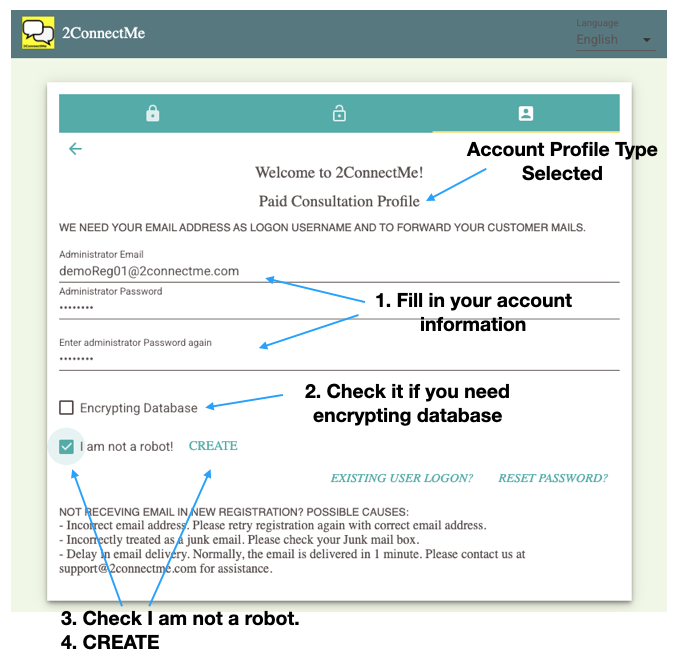
Such database encryption can only be setup in step 2 of intiial registering the account (administrator).
Password Lost
The database is encrypted with user logon password. 2ConnectMe does not store such password at any form. Therefore, when the password is lost, 2ConnectMe CANNOT recover such database.
Recovery words
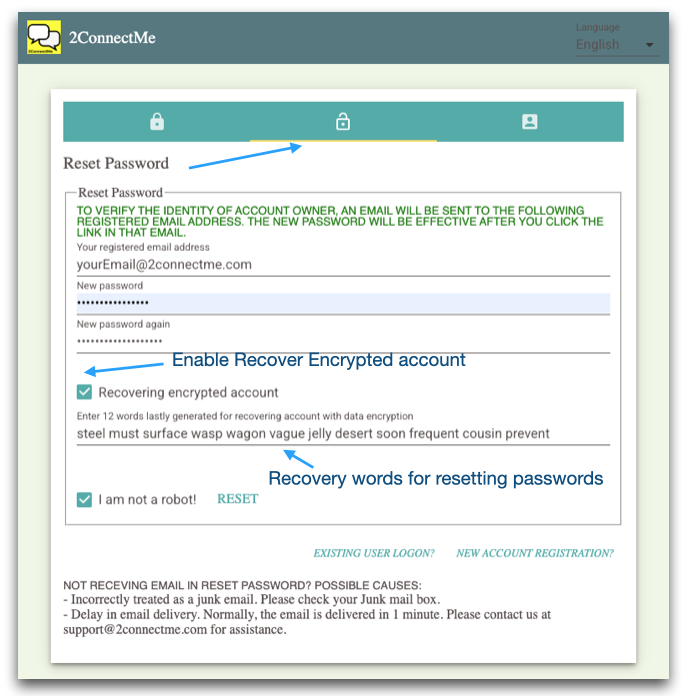
The only way to recover database without password is through th recovery words. Such recovery words is used to reset the password on logon screen. It is utmost important to write these recovery words on paper or any form at safe place. 2ConnectMe does not store any of recovery words at any form. You are the only one who could generate the recovery words for resetting password without original password.
Go to Settings -> Reset Password -> GENERATE RECOVERY KEY
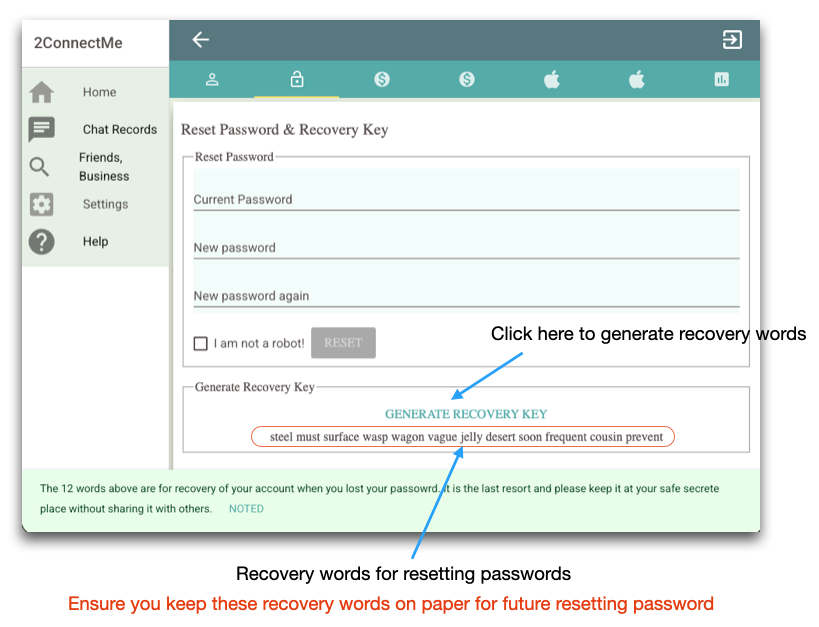
Reset Password for Encrypted account on Logon Screen